
Access
Only the Organization Owner or paid licensed members with the Organization Member Management permission can access this area.
- From the left navigation, click on your Organization (icon at the bottom/left that should show your organization logo or two-letter characters)
- This will open the Organization panel; click Member Licenses & Permissions
Use
This area is ideal for viewing and managing all the members in your organization. Don’t forget that this area is accessible only to the Organization Owner, who is always listed at the top with the Organization Owner badge, and to any paid licensed users who have been granted the permission we will show you later in this article, called Organization Member Management.
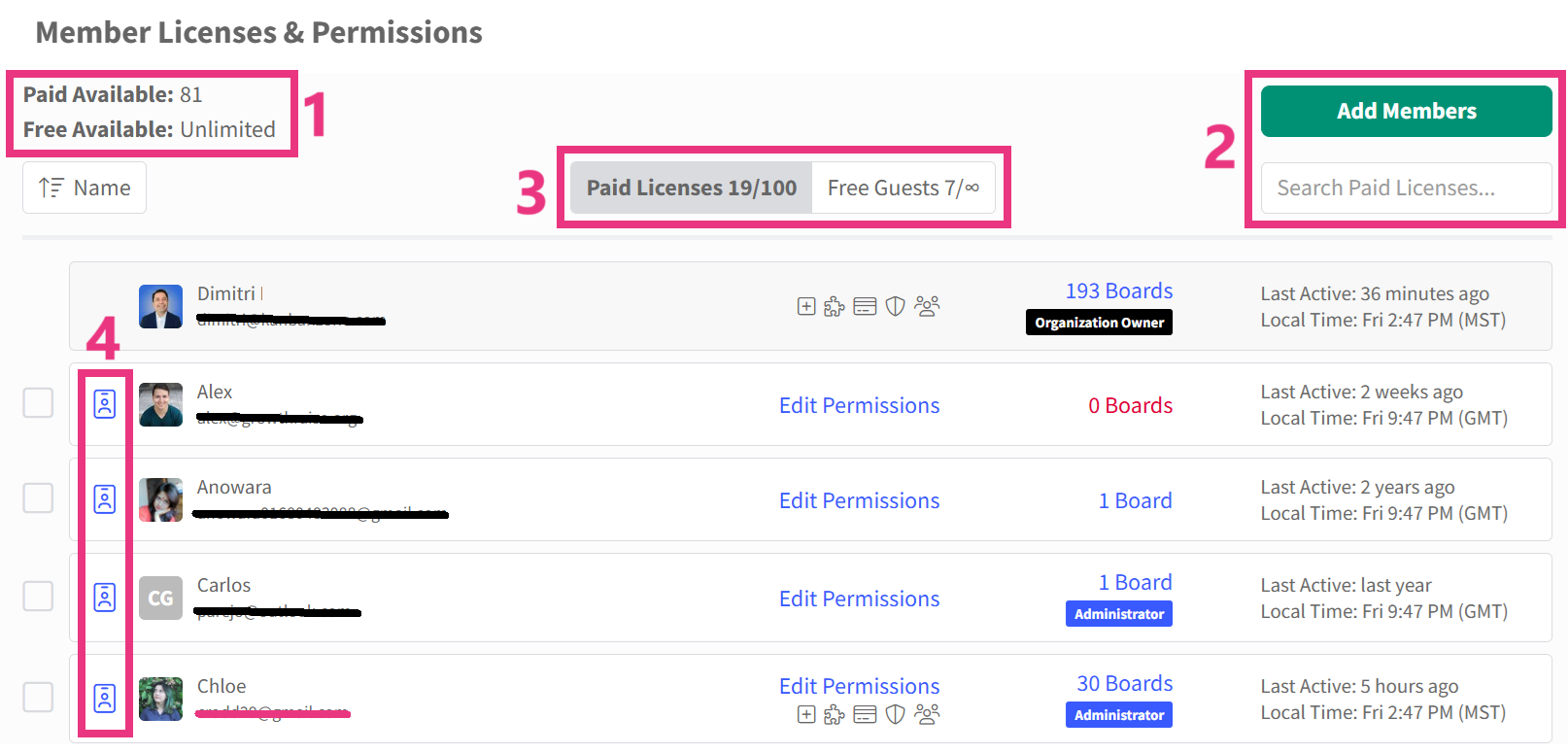
In the screenshot above, we will explain the four numbered sections (1 to 4):
- The number of available paid and free licenses is always clearly displayed so you know exactly how many licenses are available to manage.
- Clicking the Add Member will open the Add Member option in the left navigation panel, just like it would work if you clicked the Add Member icon from that left navigation. The search box will help you find members by their names.
- Your licenses are split between paid and free, using this switcher to manage either your paid or free licenses. Under each, you can promote to paid or demote to free to move members between paid and free. Below, we will show you how to promote/demote your members.
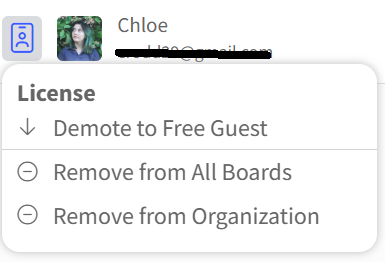
- Clicking the icon on the left of any member, except the Organization Owner or yourself, lets you manage their license access with these options: demote to Free Guest or promote to Paid License, Remove from All Boards, and Remove from Organization (see screenshot below when clicking on a paid member).
Permissions
We currently provide 5 permissions. The Organization Owner always has all 5 permissions, and no one can modify them. For all other paid licensed members (not free guests), you can manage permissions and assign exactly what each member needs. Each permission is represented by a specific badge to help you quickly see which permissions are already assigned to each member.

As shown above, under Permissions, you can set these 5 permissions that show as badges :
- Add Boards
- Plan & Billing
- Advanced Features
- AI & Integrations
- Security
- Organization Member Management
These permissions use a toggle to enable or disable that permission. Now let’s explain each of these permissions…
The Add Boards permission, when enabled, lets this paid licensed member add new boards and, by default, become the Administrator of that board. If you want certain members to be Administrators of existing boards but not create new ones, then keep this permission disabled.
The Plan & Billing permission, when enabled, grants this paid licensed member access to current billing information and the ability to make purchases and subscription changes for the organization. This is ideal for giving to the person in charge of managing your software purchases for your organization.
The Advanced Features permission, when enabled, lets this paid licensed member manage organizational settings. A good example is custom fields, any administrator can use existing custom fields on a board, but only the person with this permission can create and modify the custom fields for the entire organization.
The AI & Integrations permission, when enabled, lets this paid licensed member manage AI for the organization (enable AI, manage AI nudges, view AI credit usage, set AI instructions for the organization, enable and manage MCP access per user) as well as Integrations (API Webhooks, Make, Zapier) and view all the connections for the organization (Agent Webhooks, API Keys, Connected Apps). Only someone with this permission can generate the organization's API key and manage your integrations.
The Security permission, when enabled, allows this paid licensed member to manage security settings such as Data Retention and SSO (Single Sign-On).
The Organization Member Management permission, when enabled, lets this paid licensed member manage members on this screen. Only someone with this permission can access this screen. Please note that, as a security measure, this access allows you to update all members within the organization except the Organization Owner and yourself.
We have created these permissions to relieve the Organization Owner from having to do everything. Although the Organization Owner will always have access to everything, they can now choose to delegate certain functions that were previously available only to Organization Owners. If you delegate all permissions, you have technically created a second Organization, which is ideal for a backup.
If you need to change the member assigned as the Organization Owner, contact support.
For each member, you will see the number of boards they can access.
Boards
For each member, you will see the number of boards they can access.
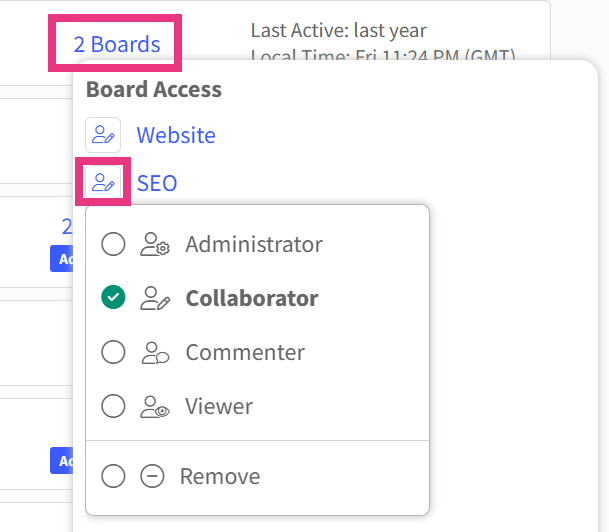
As shown in the screenshot above, the Board Access menu opens when you click the number of boards for a member. If you, as the logged-in user, have access to a board, it will show as a blue link so you can quickly access it. If you are also an administrator of a board, the icon on the left will also be blue, so you can directly manage the role you want to assign to a member from here. Learn more about board access roles…
Bulk Actions
To save you time, you can select one or more members to apply bulk actions.
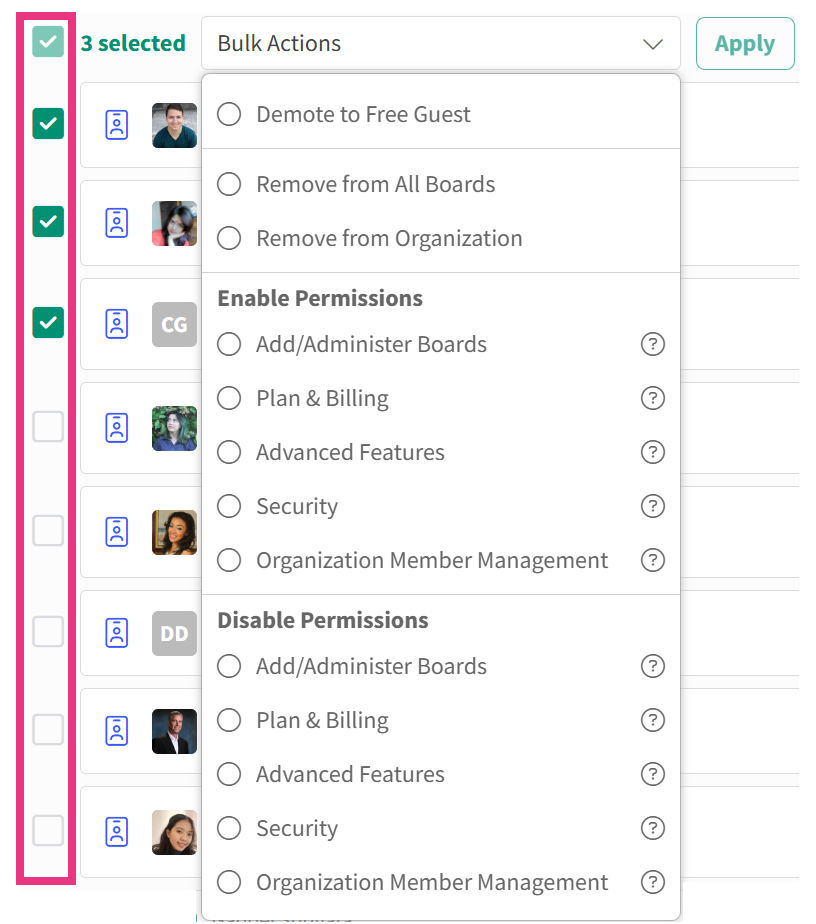
In the screenshot above, you can see all the actions that can be performed in bulk. You will find the same actions that you can do individually for each member in this menu. Enable Permissions turns these ON, and Disable Permissions turns them OFF.